

Guide
The controls on a PC and on a phone, a career's first steps, and where the game keeps your files.
Controls
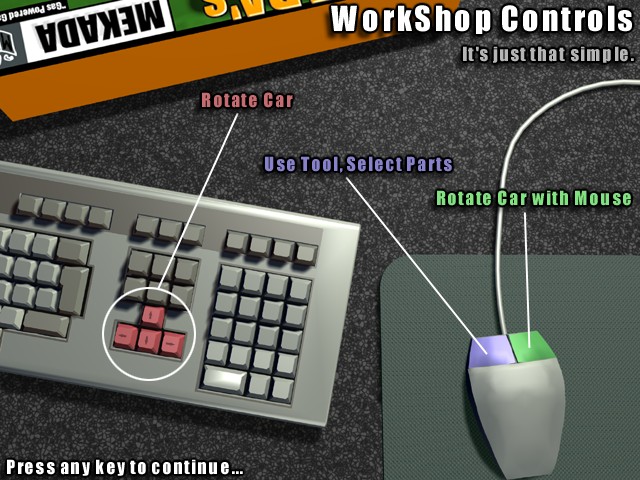
The game is played with a pointer; a phone's touch works it as a mouse does.
Windows
| Do this | To |
|---|---|
| Left button | Point, click and drag: every button, the wrench, the Parts Bin, the spray can |
| Drag the car | Turn it in the WorkShop; a click that does not move is the tool's |
| Right button, dragged | Turn the car, with any tool, the spray can included |
| ← ↑ → ↓ | Turn the car, as in the original |
| Mouse wheel | Bring the car nearer or farther |
| Drag the view | Walk along the JunkYard or the Car Lot (the arrows on the screen and ← → too) |
| Esc | Back out of the Catalog, JunkYard, Car Lot or Auction to the WorkShop; close Settings or the credits |
Android
| Do this | To |
|---|---|
| Tap | Click: buttons, parts, bolts |
| Touch and drag | Drag: carry a part from the Parts Bin, spray paint |
| Drag the car | Turn it in the WorkShop |
| Two fingers | Turn the car while the spray can is out |
| Pinch | Bring the car nearer or farther |
| Drag the view | Walk along the JunkYard or the Car Lot |
| Back | As Esc: back out of a place to the WorkShop; close Settings or the credits |
A new mechanic's name is typed with the phone's keyboard; Done is OK.
A career's first steps
- Start a mechanic. On the sign-in sheet, NEW beside an empty row asks for a name. There are ten rows; each mechanic starts at the Learning skill with $5,000.
- Sign in by clicking the mechanic's row. The WorkShop opens.
- Take the first job. A new career's first jobs come by themselves: the customer, how hard it is and the fee. OK brings the car in; the face in the right-hand column is Job Help, the customer's next instruction.
- Take a part off. Choose a view (Engine, Body or Running Gear), point at a part with the impact wrench and click it: its bolts are labelled; click each one. The part drops into the Parts Bin.
- Repair, replace or scrap it. Drag it from the Parts Bin onto REPAIR (for a price), onto SCRAP (the JunkYard buys it), or back onto the car and bolt it on. New parts come from the Catalog, used ones from the JunkYard.
Show Condition
Hold Show Condition to colour every part by its state: Perfect, Worn, Barely or Scrap. A Scrap part cannot go back on a car. When a car is complete and every part is Perfect, it is at Top Condition, and the game tells you how long it took and what it cost.
Skills
A mechanic moves up one skill at a time: Novice after 9 jobs; Handy after 20 jobs, $15,000 in cash or more than 4 cars; Expert at $35,000 or more than 10 cars; Mekada at $120,000. Each step opens more cars at the Auction and more jobs, and the cars on offer come in worse shape.
Money
Jobs pay their fee. A car you have fixed can go back to the Auction, where the other bidders decide what it fetches. A mechanic owns twelve cars at most.
Your files
| What | Windows (beside GearheadGarage.exe) |
|---|---|
| Mechanics | Data\Mechanics\0.mek to 9.mek, the original game's format |
| Photos | Data\SnapShots\Shots_<name>\Shot<n>.jpg |
| Settings | settings.cfg |
| The log | game.log, rewritten each start |
| Cars | Data\Cars: a car made for the game, put here, shows up in it. Players' cars: 172 on the Internet Archive |
| What | Android (Android/data/org.teamvanilla.ghg/files) |
|---|---|
| Mechanics | Data/Mechanics |
| Photos | Data/SnapShots |
| Settings | settings.cfg |
| Cars | A car made for the PC game, put in Data/Cars, shows up in the game |
Settings
SETTINGS, in the sign-in sheet's Options box
- Renderer (Windows)
- Automatic (DirectX 12 where the card has it), DirectX 12, DirectX 11 or OpenGL; it changes the next time the game starts.
- Screen and window (Windows)
- A window of 640 x 480 up to 2560 x 1920, or full screen.
- Picture
- Fill screen stretches the 640 x 480 screens to any shape; 4:3 keeps them in proportion with dark sides.
- Vertical sync and frame limit
- With vertical sync off, the frame rate can be held to 60, 120, 144 or 240, or left free.
- Anti-aliasing
- Off, 2x, 4x or 8x on the 3D views.
- Sound
- Volume, music and effects, and whether the music plays at all.
- Photos
- Printable copies (a full-size BMP beside each photo), and a browser for every mechanic's snapshots.
- Frame counter
- Frames per second in the bottom corner.
If something goes wrong
The game writes game.log as it runs: it names the build, the graphics card and its driver, and after a crash where it happened. Send it with a few words on what you were doing, on TeamVanilla's Discord.
On Windows, these can be added to a shortcut's target for one start:
--d3d11 | Draw with DirectX 11 this time |
--gles | Draw with OpenGL this time |
--warp | Draw with Windows' own software renderer: slow, but it tells a driver problem from a game problem |